
The Manav Sampada Portal is an advanced Human Resource Management System (HRMS) created by the Government of India to simplify and digitise various employee-related services. This online platform is mainly designed for government departments and helps manage important employee information such as service records, leave applications, transfers, promotions, and retirement details in a transparent and efficient manner.
Over the past few years, eHRMS UP has become a vital digital platform for lakhs of government employees. It is widely used in states like Uttar Pradesh, where government departments rely on it for daily HR operations and employee management. In this article, we will provide basic information about Manav Sampada UP Basic Education and how it supports employees in the education department.
Services Available On Manav Sampada Portal (Ehrms UP)
- Employee login & profile management
- Online leave application & tracking
- e-Service Book (digital service record)
- Salary slip / pay details download
- Transfer & posting order view
- Promotion & increment records
- Fact Sheet / P2 report access
- Annual Confidential Report (ACR)
- Document upload & verification
- Departmental notices & updates
- Pension-related services (where applicable)
- Mobile app services (leave, payslip, service book)
Follow the given steps for Manav Sampada UP login:
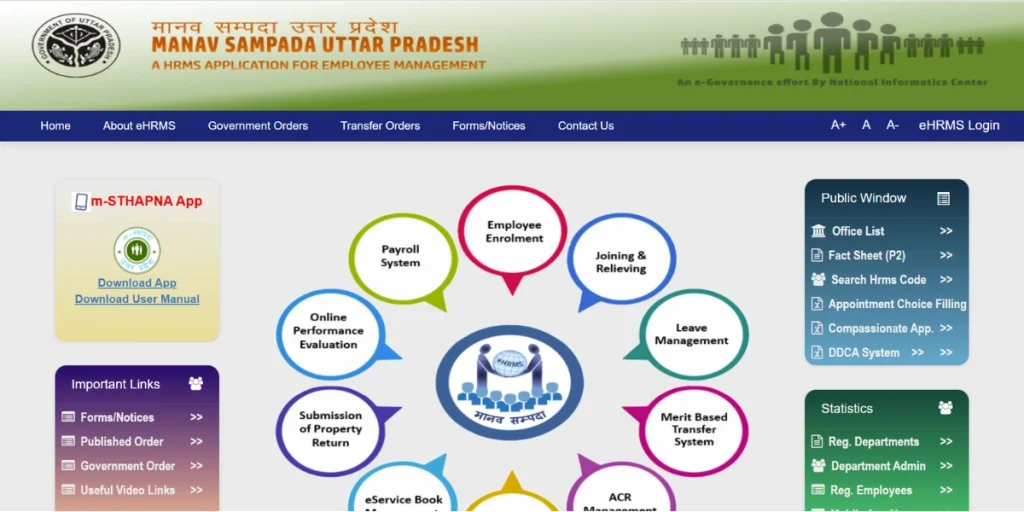
- Open the official (eHRMS) portal.
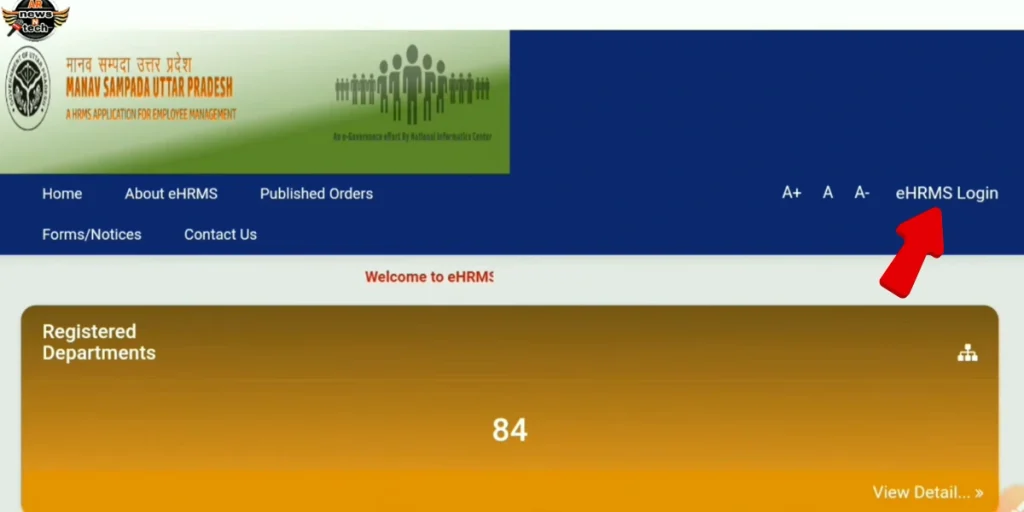
- Click on the “eHRMS Login / Login” option.
- Select your Department from the dropdown.
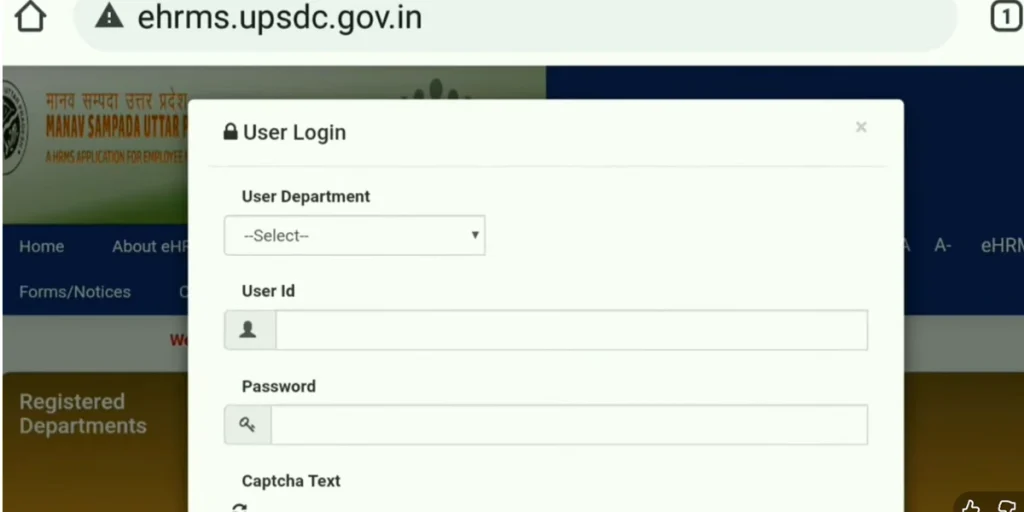
- Enter your User ID / Employee Code.
- Type your Password carefully.
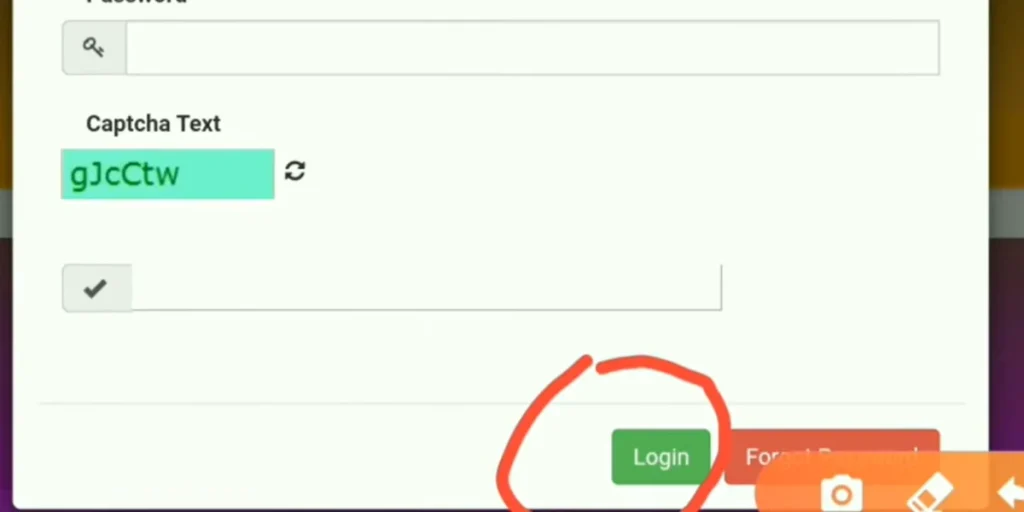
- Enter the Captcha Code shown on the screen.
- Click on the Login button.
- After successful login, your eHRMS UP Dashboard will open.
- From the dashboard, you can access leave, service book, salary slip, transfer details, etc.
Eligibility for Manav Sampada Uttar Pradesh Portal
- The user must be a government employee of Uttar Pradesh.
- The user should have a valid Employee ID/ User ID issued by the department.
- Your service record must be registered in the portal database by the department’s nodal/HR officer (no self-registration).
- This portal is only for active employees (currently working). Some departments may allow retired pensioners limited (view-only) access.
- To access all the services like leave, salary slip, service book, etc., your department must be integrated with the eHRMS UP portal.
- You should have valid login credentials (User ID + Password) to access the portal services.
Documents Required for eHRMS UP
Basic Documents (for Profile/Registration)
- Employee Identity Proof (issued by department)
- Aadhaar Card (recommended for verification)
- Bank Account Details / Passbook scan
- Personal email and Mobile Number (registered)
These help verify your account and are often needed when updating your profile or resetting passwords.
A spectacular gaming experience awaits you. Register now, claim your welcome bonus, and discover a new opportunity to win every day with exciting online games: Diuwin, V3 Game APK, Jalwa Login, 6 Club Login, OkWin, Big Mumbai
Documents for Manav Sampada Leave Applications (must-upload)
Depending on leave type:
- Medical Leave:
- Doctor’s certificate/RMP certificate (with registration number)
- Supporting medical reports (issued within the required time).
- Maternity Leave:
- Hospital admission proof
- Aadhaar-linked maternity documents.
- Child Care Leave:
- Child’s birth certificate
- School/doctor certificate/note (for age eligibility).
- Study Leave:
- Official admission letter from a recognised institution
- Proof of course duration
Without the required documents, leave applications may be automatically rejected.
Other Supporting Documents (for Upload/Profile)
Often recommended to upload (varies by department):
- Educational certificates
- 10th, 12th, Graduation degree/marksheets
- Professional qualification certificates (e.g., B.Ed, BTC)
- PAN Card
- Driving License / Voter ID
These help complete your digital service record and are useful for promotions, profile verification, and other HR processes.
Step-by-Step Process: Manav Sampada Leave Application
Step 1: Visit the ehrms.upsdc.gov.in Manav Sampada portal and complete the login procedure.
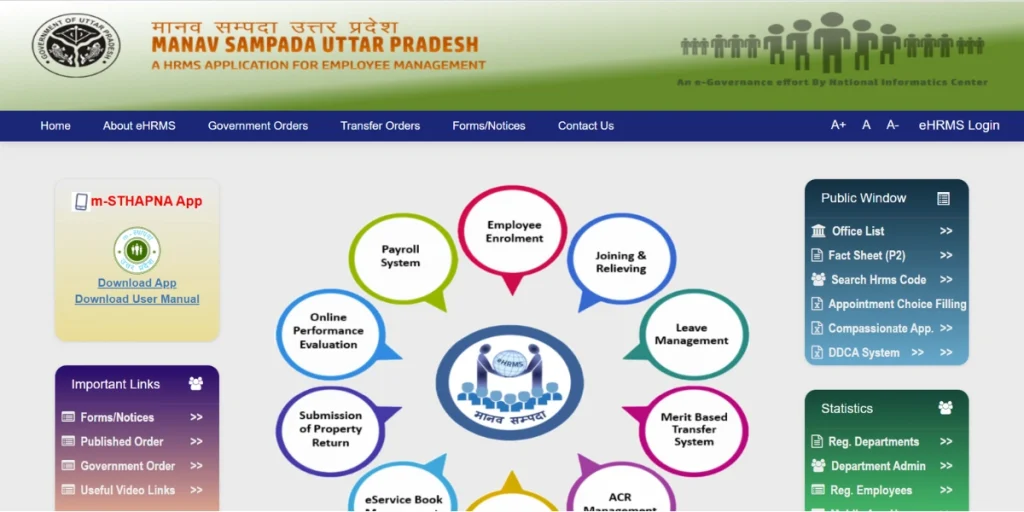
Step 2: After successful login, your UP ehrms Dashboard will open.
Step 3: On the dashboard:
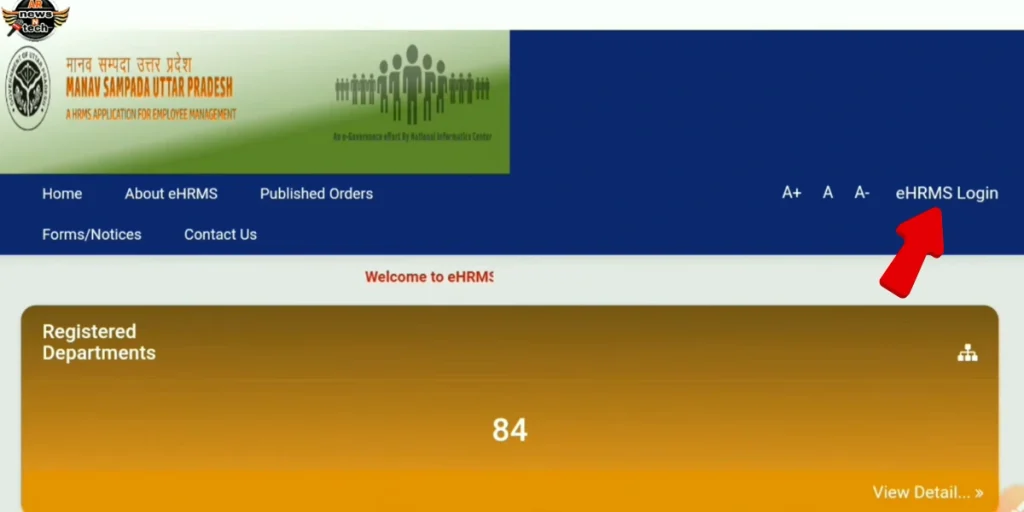
- Click on Leave or Online Leave Application
- Select Apply Leave
Step 4: Select Leave Type
- Choose the type of leave (Casual, Earned, Medical, etc.)
- The system will automatically calculate the total leave days
- Select From Date and To Date
Make sure the selected leave type matches your purpose.
Step 5: Enter Leave Reason
- Write a clear and short reason for leave
- If required, upload supporting documents (medical certificate, etc.)
Providing accurate information helps in faster approval.
Step 6: Now review all your details and click on the submit button.
How to Check Manav Sampada Leave Application Status?
- Log in to UP Manav Sampada Website
- Go to Leave → Leave Status / Leave History
- View current status:
- Pending
- Approved
- Rejected
You can also see approval remarks if the leave is rejected.
| Status Icon | Color | Meaning | Required Action |
| ✓ | Green | Approved | Download the sanction letter within 3 days |
| Amber | Pending | Follow up with reporting officer after 48 hours | |
| ✗ | Red | Rejected | Review the “Remarks” column for the reason provided |
View & Download Leave Balance on Manav Sampada UP
- Visit the official portal ehrms.upsdc.gov.in.
- Click on Login and enter your User ID, Password & Captcha.
- Open your Dashboard after successful login.
- Go to Leave Management / Leave section.
- Click on Leave Balance / Leave Account.
- Your available, used, and remaining leave will be displayed.
- Click Download / Print to save the leave balance as a PDF.
How To Download Salary Slip/Pay Details from Manav Sampada Portal UP?
- To download the salary slip / pay details from eHRMS UP, log in to the official eHRMS portal using your User ID and password.
- After login, go to the Salary / Pay Slip or Employee Services section
- Select the required month and year, and click on View or Download
You can save the salary slip as a PDF for future use. If the option is not visible, contact your department’s HR or accounts section.
Transfer & Posting Order View
- Log in to the Manav Sampada UP (eHRMS) portal using your User ID and password
- Go to Employee Services or the Transfer / Posting section
- View issued transfer or posting orders
- Click on the order to open or download the PDF
- If no order appears, it means no transfer is issued, or details are not updated by the department
How to View Service Book Management in Manav Sampada?
- Log in to the ehrms UP portal using your User ID and password
- Go to the Service Book or Employee Service Book section
- View personal, appointment, promotion, and pay details
- Check entries related to leave, transfer, and postings
- Download or view service book records (if enabled)
- Report any errors to your department HR / nodal officer for correction
How to Get Your Manav Sampada Employee ID?
If you are a newly appointed teacher or have never logged in before, getting your Manav Sampada Employee ID is the first and most important step.
Method 1: Contact Your Nodal Officer (Recommended)
Each school and district has a designated Manav Sampada nodal officer. This is the quickest and most reliable way to get your Employee ID. The nodal officer can provide your 8-digit Employee ID, confirm your department code (EDUBASIC), verify whether your profile is active, guide you on initial portal usage, and share technical support contact details. To find the nodal officer, contact your school principal or district education office.
Method 2: Check Official Documents
Your 8-digit Employee ID is also mentioned on several official records. It can be found on your appointment letter or joining order, usually in the reference or header section. It is also printed on your government-issued ID card, visible near your photograph. Additionally, your salary slips (physical or digital) include the Employee ID in the employee details section, and the service book records it on the first page along with your joining date and designation.
m-STHAPANA Mobile App: Manav Sampada at Your Fingertips
The m-STHAPANA mobile application allows employees to access all major Manav Sampada portal services directly from their smartphone, making HR tasks easier and faster while on the go.
Download and Installation Guide
For Android Users
Open the Google Play Store, search for “m-STHAPANA UP Government”, verify that the developer is UPSDC (Uttar Pradesh State Development Corporation), and download the app.
For iOS Users
Open the Apple App Store, search for “m-STHAPANA UP Government”, confirm that it is the official app published by UPSDC, and proceed with the download.
Benefits of eHRMS UP
- Maintains all employee records in a centralised, secure platform
- Enables online leave application and real-time tracking of leave balance
- Provides digital access to monthly salary slips with detailed breakdowns
- Allows employees to update personal details like contact info and bank details
- Offers transparency in transfers, promotions, and appointments
- Streamlines payroll processing, reducing errors and delays
- Accessible via the web portal and the m-STHAPANA mobile app for anywhere access
- Automates reporting for attendance, leave, and payroll management
- Ensures secure and confidential handling of employee data
FAQs
Q1. Who can use the eHRMS portal?
Only Uttar Pradesh government employees can use this portal.
Q2. What details are required for registration?
Employee code, name as per records, date of birth, department, and designation are required.
Q3. How to apply for leave through eHRMS?
Log in, go to the Leave section, select leave type and dates, and submit the request online.